Change the columns, colors, font, and other display properties of the Search Results grid.
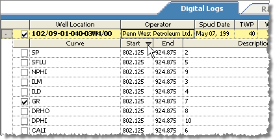
Sort by ascending and descending order at both the well level and at the item level within individual wells. In the example below, the start depth of the curves within a well are sorted.
Drag column headers in the Search Results grid to change the left-to-right order in which they appear. LOGarc enables you to save the Search Results grid for future sessions.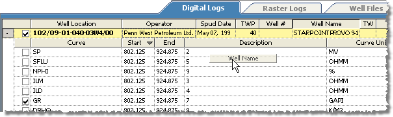
To change the columns displayed
1. Right-click the Search Results grid and from the shortcut menu, click Show/Hide columns.
The Show/Hide Columns dialog box appears.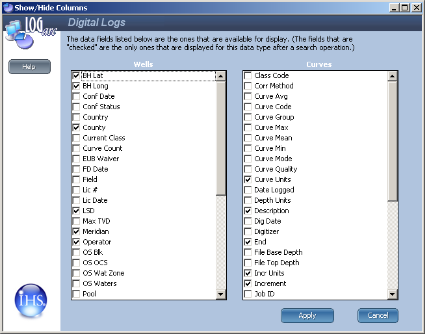
2. Using the Wells and the Curves display panes, select the various columns to display and hide.
To sort rows in columns by ascending or descending value
Click the header of the column within which to sort rows by ascending or descending value. Each time you click a column it switches between ascending and descending order.
A triangle appears in the header of the sorted column. A triangle with the base down and the point up indicates the rows are sorted from small to large / low to high. A triangle with the point down and the base up indicates the rows are sorted from large to small / high to low.
The parent/child relationship between the Well Location and its curves is maintained.
To remove sorting, from the Tools ( ) menu, click Clear All Sorting.
To change the catalog colors
1. From the Tools () menu, select Change Grid Color.
The Grid Color Selector dialog box appears.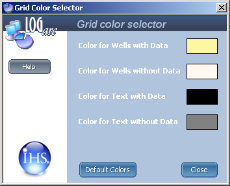
2. Click the color chip to change.
The Color dialog box appears.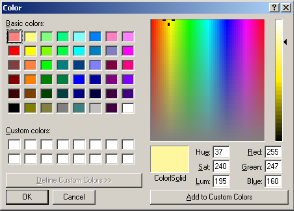
3. Select the desired color by either clicking a basic color in the left pane, or by clicking a color family in the right color palette pane and adjusting the hue by dragging the slider to the right of the color palette pane. You can also type specific RGB colors and other values directly in the boxes below the color palette.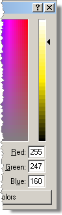
4. Click OK.
To revert to the original colors with which LOGarc shipped, click Original Colors.
5. Using the Grid Color Selector dialog box, click Close.
To change the catalog font size
From the Tools () menu, select one of the Grid Font options.
To change UWI delimiters
From the Tools () menu, select Show UWI delimiters to include slashes and dashes with UWIs in the Well Location column of the Search Results grid.
| Selecting and Retrieving Logs | Filtering the Search Results Grid |